
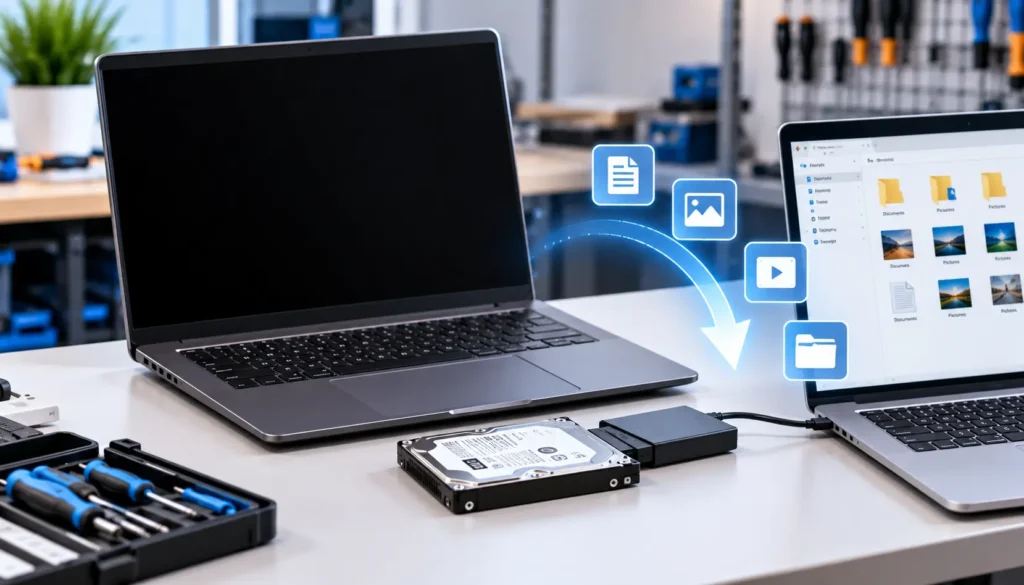
Your laptop suddenly stops powering on, and important work documents, family photos, or business files are still saved inside. Before assuming everything is lost, there is good news: you can often recover data from a laptop that won’t turn on, even when the screen stays black or the computer shows no signs of life.
The key is identifying whether the problem affects the laptop itself or its internal storage drive. In this guide, you’ll learn what causes these failures, how to protect your files, which recovery methods may work, and when to seek professional assistance.
Can You Recover Data From a Laptop That Won’t Turn On?
Yes, in many cases. Your laptop’s power system and its storage drive are separate components. A faulty battery, damaged charging port, failed motherboard, or broken screen can prevent the computer from starting without necessarily destroying the files stored inside.
Recovery depends mainly on the condition of the drive and whether its data remains accessible.
- Power or battery failure: Your files may remain intact because the storage drive might still be working.
- Operating system failure: Your documents and photos may be recoverable even if Windows cannot load.
- Damaged storage drive: Recovery may be possible, depending on the extent of the damage.
- Liquid or electrical damage: The drive and its connections may need professional inspection before recovery can be attempted.
A laptop that appears completely dead does not automatically mean your files are gone.
Why Has Your Laptop Stopped Working?
Understanding the likely cause helps determine the safest recovery method.
Battery or charging problems: A worn-out battery, faulty adapter, or damaged charging port may prevent the laptop from receiving enough power to start.
Motherboard failure: Damage to the motherboard or its power circuitry can stop the entire system from working while leaving the SSD or hard drive unaffected.
Operating system corruption: A failed update, damaged system files, or boot configuration problem can prevent Windows from starting even when your storage drive remains accessible.
Storage drive failure: An aging HDD or failing SSD may cause freezing, startup errors, missing files, or a laptop that cannot boot.
- For more information about storage problems, read our guide to SSD failure vs. hard drive failure.
How to Recover Data From Laptop That Won’t Turn On
The right method depends on what has failed. Follow these steps carefully to avoid making the situation worse.
1. Check the Power Supply First
Connect your laptop to a compatible charger and check for charging lights or other signs of power. If possible, test the charger with a compatible device or use a known-working replacement that meets the manufacturer’s specifications.
If the laptop still doesn’t respond, avoid repeatedly pressing the power button or trying random fixes. A technician can determine whether the issue comes from the charging system, battery, or motherboard.
2. Check for a Display Problem
Sometimes a laptop powers on, but its screen remains black. Listen for the fan, look for indicator lights, and check whether the keyboard responds.
If the laptop appears to be running, an external monitor may help establish whether the screen is the problem. If the display is faulty, you may still be able to access your files once the computer can be operated safely.
3. Remove the Storage Drive if Appropriate
If the laptop cannot be repaired quickly, its storage drive may be removable and accessible through a compatible USB enclosure or adapter.
A technician can remove the drive, connect it to another computer, and check whether the files can be read. This method is more straightforward when the drive is healthy, and the data is not protected by inaccessible encryption.
However, not every laptop has a removable SSD. Some newer models use soldered storage, while other devices have hardware or encryption restrictions that complicate access.
Important: If you hear clicking or grinding from a hard drive, suspect liquid damage, or notice other signs of physical failure, do not attempt repeated connections. Seek professional recovery assistance instead.
4. Check Your Existing Backups
Before attempting complicated recovery methods, check whether your files are already available through OneDrive, Google Drive, iCloud, an external drive, or another backup service.
Cloud storage may contain copies of documents and photos even if the laptop is no longer usable. Make sure you check the correct account and confirm that the latest versions are available.
The Cybersecurity and Infrastructure Security Agency (CISA) recommends the 3-2-1 backup approach: keep three copies of important data, use two types of storage media, and store one copy off-site.
What Should You Avoid When Recovering Files?
Trying to fix a laptop without understanding the fault can turn a recoverable situation into a more difficult one.
Avoid these common mistakes:
- Do not format or reinstall Windows: These actions may overwrite or complicate access to existing files.
- Do not initialise the drive: If another computer asks you to initialise an unfamiliar drive, cancel the prompt if you need its data.
- Do not keep restarting a failing drive: Repeated attempts can worsen some hardware failures.
- Do not open a hard drive yourself: Traditional HDDs contain delicate components that require specialised handling.
- Do not use random recovery software on a failing drive: Software cannot repair every physical fault, and intensive scanning may place additional stress on damaged storage.
If your files are irreplaceable, prioritise protecting the original drive over experimenting with repairs.
Can a Repair Shop Recover Files From a Dead Laptop?
Yes. A repair shop may be able to recover files even when a laptop cannot be powered on, provided the storage condition and encryption requirements allow it.
The process typically begins with diagnosing the laptop and identifying the storage type. A technician then assesses whether the drive can be accessed directly, whether the laptop needs a hardware repair first, or whether the storage requires specialised recovery methods.
At iFixLaptopRepair, our data recovery service in Las Vegas supports recovery needs involving different laptop brands, including Dell, HP, Lenovo, ASUS, Acer, and Apple devices.
Recovery is not guaranteed. Results depend on the type of failure, the condition of the storage device, encryption, and whether the data has been overwritten. Ask for a diagnosis and an explanation of the proposed recovery method before approving work.
If the issue appears to involve the storage hardware, our hard drive repair service is another relevant option for diagnosis.
What If Your Laptop Has Important Work or Personal Files?
If your laptop contains essential business documents, customer records, financial information, or irreplaceable photos, explain which files matter most before recovery begins.
Ask the technician whether the data can be copied to an external drive or another secure destination. You should also clarify how sensitive information will be handled and whether the original storage device will be preserved during the process.
Once your files are recovered, create a backup before returning to everyday use. This reduces the risk of losing the same information if the laptop or its replacement drive develops another problem.
Need Help Recovering Your Laptop Files?
You do not necessarily need to replace your laptop or lose your files simply because it will not turn on. The first step is finding out whether the fault affects the power system, motherboard, operating system, or storage drive.
iFixLaptopRepair provides laptop diagnostics and data recovery assistance in Las Vegas and Henderson. Contact the team to discuss your laptop’s symptoms and available recovery options.
Conclusion
You may still be able to recover data from a laptop that won’t turn on, even if the computer appears completely dead. The outcome depends on the cause of the failure and the condition of the storage drive.
Avoid formatting, repeated restarts, and risky DIY repairs when important files are at stake. A professional diagnosis can help identify the safest next step and give you a clearer picture of your recovery options.
