
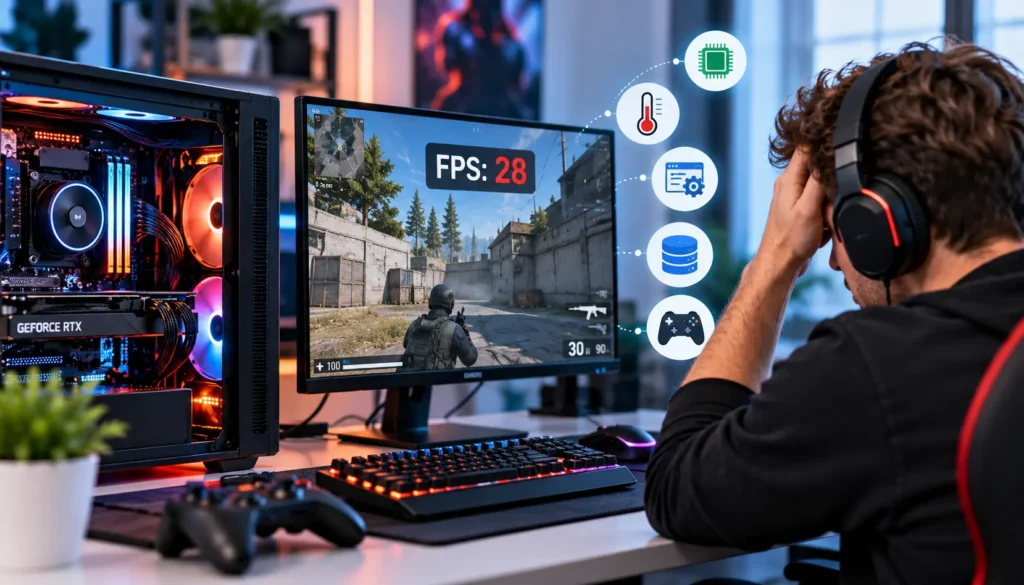
If your gaming PC low FPS suddenly becomes a problem, you do not necessarily need a new graphics card or processor. A sudden drop in frames per second (FPS) can result from overheating, outdated drivers, background applications, incorrect game settings, or hardware issues. Before spending money on upgrades, check these nine possible causes to identify what is affecting your gaming performance.
Why Did My FPS Suddenly Drop on PC?
A sudden FPS drop usually means something has changed in your system, game settings, or hardware performance. If a game previously ran smoothly but now stutters or struggles to maintain its usual frame rate, start by checking temperatures, resource usage, recent updates, and graphics settings.
FPS measures how many frames your computer displays each second. Higher FPS generally produces smoother gameplay, while sudden fluctuations can cause stuttering, delayed responses, and uneven movement.
9 Things to Check When Your Gaming PC Has Low FPS Suddenly
1. Check for CPU or GPU Overheating
Overheating is a common reason for sudden FPS drops during gaming. When your CPU or graphics processing unit (GPU) becomes too hot, it may reduce its operating speed to control temperatures. This process, called thermal throttling, can cause performance to decline after several minutes of gameplay.
What to check:
- Monitor CPU and GPU temperatures using a trusted hardware monitoring tool.
- Check whether fans are spinning and air vents are clear.
- Look for dust buildup around fans, heatsinks, and air filters.
- Make sure your PC has enough space for proper airflow.
If temperatures rise sharply before FPS drops, cooling may be the problem. Avoid opening a power supply or handling internal components unless you know how to do so safely.
2. Update or Roll Back Your GPU Drivers
Can outdated GPU drivers reduce FPS? Yes. Graphics drivers help Windows communicate with your graphics card, and outdated, corrupted, or incompatible drivers can cause performance problems, crashes, and graphical glitches.
Visit the official NVIDIA, AMD, or Intel website to find a driver compatible with your graphics card. If the problem started immediately after a driver update, check whether returning to a previous stable version resolves it.
Microsoft also explains that manufacturer-specific display drivers can offer better performance, stability, and graphics features than its basic display adapter.
3. Close Background Applications
Streaming software, browser tabs, downloads, recording tools, and other applications can compete with games for CPU time, memory, and storage access. This can affect gaming PC performance, especially when your system is already running close to its limits.
Try these steps:
- Press Ctrl + Shift + Esc to open Task Manager.
- Select the Processes tab.
- Check which applications are using significant CPU, memory, or disk resources.
- Close unnecessary applications you recognise and do not need.
Do not end unfamiliar system processes. If performance improves after closing a particular application, investigate its settings or prevent it from starting automatically.
4. Review Your In-Game Graphics Settings
Game settings may change after an update, reset, or graphics driver installation. Higher resolutions, ray tracing, shadows, and demanding effects can place additional pressure on your GPU.
Open your game’s graphics menu and check:
- Display resolution and rendering scale.
- Ray tracing and shadow quality.
- Texture quality and other GPU-intensive effects.
- Frame rate limits and V-Sync settings.
Try reducing one demanding setting at a time and test the same section of the game. If FPS improves significantly, your graphics settings may be exceeding what your current hardware can comfortably handle.
5. Check Whether Your GPU Is Being Used Properly
GPU performance problems can occur when a game uses the wrong graphics processor, the graphics driver fails, or the GPU is not operating as expected. This is especially relevant to systems with integrated and dedicated graphics.
In Windows 11, open Settings > System > Display > Graphics, select your game, and check its graphics preference. On supported systems, you can select High performance to prefer the dedicated GPU.
You can also monitor GPU utilisation in Task Manager while the game is running. Low utilisation alone doesn’t prove a fault, but it may point to a CPU bottleneck, incorrect graphics selection, a frame rate cap, or another limitation.
For persistent issues, see iFixLaptopRepair’s graphics card repair service for professional hardware diagnostics.
6. Check RAM and Memory Usage
When your PC runs short of available memory, Windows may need to move more data between RAM and storage. This can cause stuttering, inconsistent frame times, and slowdowns in memory-intensive games.
Open Task Manager and review memory usage while gaming. Close unnecessary applications and check whether your system meets the game’s recommended RAM requirements.
If memory usage regularly approaches its limit, additional RAM may help. However, confirm the actual memory bottleneck before buying new components. More RAM will not automatically improve FPS if the real issue is overheating or GPU performance.
→ Need a RAM Upgrade?
If low memory is affecting your gaming performance, we can help you choose and install compatible RAM.
7. Check Your Power Settings
Windows power settings and manufacturer utilities can affect how your system manages power and performance. A restrictive power mode may limit performance in some circumstances, while laptops and compact gaming systems may reduce power when using battery power.
Open Windows Settings and review System > Power & battery or the relevant power settings for your device. If available, select a performance-focused mode while gaming and connect the appropriate power adapter.
Avoid changing advanced voltage or power limits without understanding their effects. These adjustments are not necessary for most basic FPS troubleshooting.
8. Check Game Updates and Recent Windows Changes
A sudden FPS drop may begin after a game patch, Windows update, driver installation, or change to an overlay or recording application. Sometimes the issue affects one game rather than the entire PC.
Check the game’s official support page for known performance issues. Install available stable updates, restart the PC, and temporarily disable unnecessary overlays to test whether they are contributing to the problem.
Microsoft recommends checking Windows updates, driver updates, startup applications, and available storage when investigating slow PC performance. Its Windows performance troubleshooting guide provides further steps.
9. Check Storage Space and Hardware Health
A nearly full system drive, storage errors, or a failing component can contribute to loading delays, stuttering, and general system instability. These problems may be more noticeable when games load large textures or assets.
Check available space under Settings > System > Storage. Remove unnecessary files safely and ensure your games have enough free space for updates.
If you also notice unusual noises, repeated crashes, graphical artefacts, or unexpected shutdowns, investigate hardware health rather than assuming the problem is software-related. Persistent issues may require professional testing of the GPU, CPU cooling system, RAM, power supply, or storage drive.
How Do You Improve FPS Without Buying a New PC?
You can often improve FPS without upgrading hardware by following a simple troubleshooting order:
- Restart your PC and test the game again.
- Check CPU and GPU temperatures during gameplay.
- Close unnecessary background applications.
- Verify graphics settings and update or roll back drivers as appropriate.
- Check RAM usage, storage space, and Windows power settings.
- Test whether the problem affects one game or every game.
Change one thing at a time and compare performance under similar conditions. This makes it easier to identify the cause instead of making several changes that may not help.
When Should You Get Your Gaming PC Professionally Checked?
If the problem continues after these checks, professional diagnostics can help identify hardware faults that software adjustments cannot resolve. iFix offers gaming PC repair services to diagnose persistent FPS drops, overheating, and other performance issues.
We provide gaming PC diagnostics and repair services, including GPU and CPU troubleshooting, cooling system checks, and hardware repairs. Its technicians can assess the problem before recommending a repair or upgrade.
Call Us Now to Book a Gaming PC Diagnostic
Conclusion
When your gaming PC low FPS suddenly becomes noticeable, check temperatures, graphics drivers, background applications, game settings, RAM, power options, and storage before purchasing new hardware. A careful diagnosis can help you identify the cause, restore smoother gameplay, and avoid unnecessary spending. If the problem persists or you suspect a hardware fault, arrange a professional inspection before replacing expensive components.
Frequently Asked Questions
Can overheating cause FPS drops?
Yes. When a CPU or GPU becomes too hot, it may reduce its speed to control temperatures. This can lead to lower FPS, stuttering, and inconsistent performance during longer gaming sessions.
Can outdated GPU drivers reduce FPS?
Yes. Outdated, corrupted, or incompatible drivers can affect graphics performance and stability. Installing a compatible manufacturer-recommended driver or rolling back a problematic update may resolve the issue.
Why is my gaming PC getting low FPS in only one game?
The game may have demanding graphics settings, a recent update, compatibility problems, or a specific software conflict. Check its settings and official support information before making hardware changes.
How do I know whether I need a GPU upgrade?
Consider an upgrade when monitoring and testing show that your GPU consistently limits performance at your preferred resolution and settings, and your system is otherwise working correctly. Rule out cooling, driver, and software problems first.
