
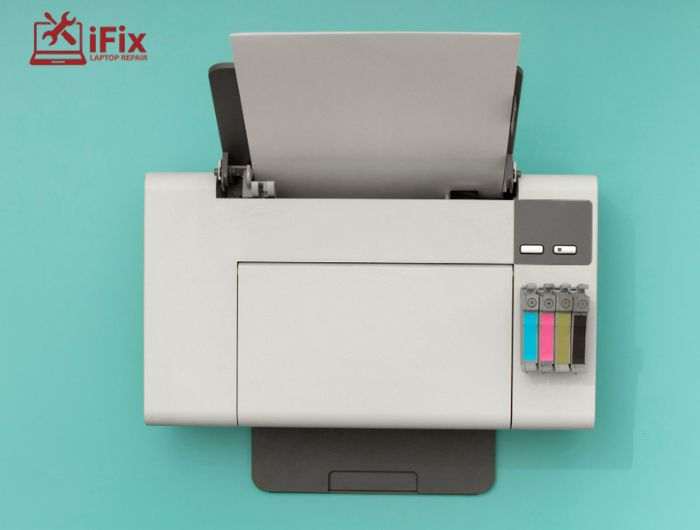
It’s frustrating when your printer stops working even though the cartridges are full. If your printer not printing but has ink, the issue is usually something minor rather than a serious fault. Problems like clogged printheads, loose connections, or incorrect settings can interrupt printing without warning, making it confusing for users.
The good news is that most of these issues are easy to fix at home. With a few simple checks, you can identify the cause and get things working again. This printer troubleshooting guide covers the common reasons and practical solutions that help restore your printer quickly.
What Does It Mean When Your Printer Has Ink But Won’t Print?
When your printer not printing but has ink, it usually means the issue is not the ink level itself. Instead, something is blocking the printing process.
This could be:
- A software issue
- A hardware blockage
- A communication error between your device and the printer
Understanding this helps you fix the problem faster instead of replacing ink unnecessarily.
→ Need Your Printer Fixed Fast?
Don’t let printing issues slow you down. Whether your printer has ink but won’t print, shows errors, or delivers poor-quality results, getting expert help can save time and prevent further damage.
Common Reasons Why a Printer Does Not Print But Has Ink
Learn the common causes behind a printer not printing but having ink, including settings, connection, and printhead issues.
1. Is Your Printer Properly Connected?
Sometimes, your printer not printing but has ink simply because the device is not communicating with your computer or network correctly. Even a small interruption in the connection can stop print jobs from reaching the printer.
Check:
- Wi-Fi connection stability and signal strength
- USB cable condition and proper insertion
- Printer status (make sure it is not set to offline)
A quick restart of both your printer and device often restores the connection and resolves the issue.
2. Clogged Printhead Issues
A very common cause of a printer not printing when it has ink is dried ink blocking the printhead nozzles. This usually happens when the printer is not used regularly, causing ink to harden and restrict flow.
Look for signs like:
- Faded or streaky prints
- Completely blank pages
- Missing colors in output
In such cases, you’ll need a proper clogged-printer-head fix to restore smooth ink flow.
→ Dealing with Paper Jams Too?
Clogged printheads often go hand in hand with paper feed issues. If your printer is also jamming or not pulling paper correctly, it’s time to fix it before it leads to bigger damage or delays.
3. Printer Driver Issue
Your printer depends on software drivers to function properly. If these drivers are outdated, corrupted, or incompatible, your printer not print but may still have ink and may fail to respond to print commands.
Common signs include:
- Printer not showing up on your device
- Print jobs are stuck without progress
- Error messages during printing
Updating or reinstalling drivers can quickly fix this printer driver issue.
4. Printer Spooler Error
The print spooler manages all print jobs. When it gets overloaded or stuck, it can block new tasks, leading to a printer spooler error.
This may happen when:
- Multiple jobs are queued at once
- A previous job failed, but remains stuck
- The system crashes during printing
Clearing the queue usually restores normal function.
5. Printer Ink Cartridge Problem
Even if cartridges are full, they may not work correctly due to installation or compatibility issues. This is a common printer ink cartridge problem that many users overlook.
Check for:
- Improper installation or loose fitting
- Protective tape not removed
- Use of incompatible cartridges
Fixing these small issues can often resolve the problem instantly.
👉 Get Your Device Repaired Today
A slow or broken device affects productivity. Get it fixed quickly by experienced technicians.
6. Incorrect Printer Settings
Sometimes, your printer not printing but has ink is caused by incorrect settings rather than a technical fault. Small configuration errors can prevent printing altogether.
Review:
- Default printer selection
- Paper size and print preferences
- Paused or canceled print jobs
Adjusting these settings ensures your printer receives the correct instructions.
Step-by-Step Fixes for Printer Not Printing But Has Ink
Follow simple step-by-step solutions to fix the printer not printing but has ink and restore smooth, reliable printing quickly.
Step 1: Restart Everything
Start with a basic reset. Turn off your printer and computer completely, unplug the printer for about 30 seconds, then power everything back on. This clears temporary glitches and refreshes the system connection.
Step 2: Check Connections
Make sure your printer is properly connected to your device. If you are using Wi-Fi, confirm the printer is on the same network. For wired setups, check that cables are secure and undamaged.
- Reconnect Wi-Fi if needed
- Try a different USB port
- Ensure the printer shows “online” status
Step 3: Clear the Print Queue
If your printer is stuck, clearing the queue can fix a printer spooler error. Open your printer settings, view pending jobs, and cancel all tasks before sending a new print request.
- Open the control panel or settings
- Navigate to the printer queue
- Remove all pending jobs
This allows the printer to process new commands properly.
Step 4: Clean the Printhead
Use your printer’s maintenance settings to run a cleaning cycle. This helps remove dried ink that blocks nozzles and improves print quality.
- Access maintenance menu
- Run automatic cleaning
- Repeat if needed for better results
This step is essential to fix faded printer output and restore normal printing.
→ Still Seeing Poor Print Quality?
If automatic cleaning isn’t enough, a deep professional clean can fully clear stubborn clogs and restore smooth ink flow without risking damage to your printer. Get expert printhead cleaning for sharper, consistent results.
Step 5: Update Printer Drivers
Fix any printer driver issues by updating your drivers. Visit the official website of your printer brand, download the latest version, and install it on your device.
- Uninstall old drivers if needed
- Install the updated version
- Restart your system after installation
This ensures smooth communication between your device and printer.
Step 6: Check Ink Cartridges
Remove the cartridges and reinstall them carefully. Make sure they are aligned properly and fully locked into place.
- Remove protective tape if present
- Clean cartridge contacts gently
- Use compatible cartridges only
This helps resolve any printer ink cartridge problem and restores proper ink flow.
👉 Need Expert Help with Your Printer?
If your printer still isn’t working after basic fixes, it’s time to get professional support. Our experts can quickly diagnose the issue and provide the right solution to get you back to printing without delays.
Conclusion
Dealing with a printer not printing but has ink can be frustrating, but most of the time, the solution is simple. From fixing connection issues to cleaning the printhead, these steps can save you time and money.
Follow this printer troubleshooting guide, and you’ll likely get your printer working again without needing a replacement.
FAQs
- Why does my printer show ink but print blank pages?
This usually happens due to clogged printheads, incorrect alignment, or dried ink blocking the nozzles.
- Can low-quality ink cause printing problems even if cartridges are full?
Yes, poor-quality or incompatible ink can affect flow and lead to weak or missing prints.
- How often should I clean my printer printhead?
It depends on usage, but regular users should clean it every few weeks to prevent ink blockage.
- Why does my printer take a print command but do nothing?
This is often due to a stuck print queue, driver issue, or communication error between the device and the printer.
- Is it safe to use third-party ink cartridges?
They can work, but low-quality ones may cause clogs or recognition issues, affecting print performance
