



Losing years of photos, work documents, or personal files can happen in seconds if your device suddenly fails. Hardware wear, accidental drops, malware, and theft can all leave you without access to important data. Learning how to back up your device before problems occur is one of the simplest ways to protect your digital life. This guide explains practical backup methods, what files to save, and how to keep your backups ready when you need them.
According to the U.S. National Institute of Standards and Technology (NIST), maintaining reliable backups is one of the most effective ways to protect information from hardware failure and cyber incidents. Backblaze’s annual drive reliability reports also show that storage devices can fail unexpectedly, making regular backups essential.
Why Is It Important to Back Up Your Device Before It Breaks?
Every storage device has a limited lifespan. Even if your computer or phone appears to work normally today, internal components can fail without warning.
Creating a backup helps you:
- Prevent permanent data loss
- Protect family photos and videos
- Secure work files and business documents
- Restore important information after a hardware failure
- Make upgrading to a new device much easier
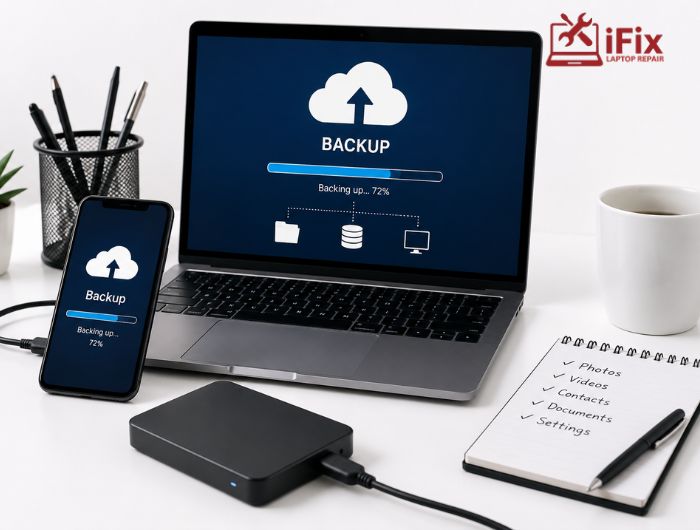
If you are wondering what the best way to back up a device is, the answer is using more than one backup location. Combining cloud storage with an external drive offers greater protection than relying on a single copy.
→ Need Data Recovery Services?
If your device has already failed, our specialists can assess your storage and recover important files whenever possible.
What Data Should You Back Up?
Many people only think about backups after losing valuable information. Instead, identify the files that would be difficult or impossible to replace.
These usually include:
- Photos and videos
- Personal and business documents
- Contacts
- Emails
- Messages
- Financial records
- Password managers
- App settings
- Browser bookmarks
A complete device backup method plan should include everything you need to restore your daily workflow quickly.
What Are the Best Ways to Back Up Your Device?
There is no single backup solution that works for everyone. The right option depends on your storage needs and how often your files change.
Cloud Storage Backup
Cloud storage automatically saves your files online, making them accessible from multiple devices. It also protects your information if your computer or phone is lost or damaged.
Popular cloud services offer automatic syncing, reducing the chance of forgetting a backup.
External Hard Drive Backup
External drives provide fast local backups and large storage capacity. They are ideal for complete system backups and large media libraries.
Remember to disconnect the drive after backing up to protect it from ransomware or electrical damage.
USB Flash Drive Backup
USB drives work well for storing important documents and small collections of files. While convenient, they should not replace a complete backup strategy.
Using both local storage and cloud storage backup creates multiple layers of protection.
👉 Need help protecting your important files before a repair? Book a professional backup and device assessment today.
How Can You Back Up Different Devices?
Most modern operating systems include built-in backup tools.
Windows PC
- Use Windows Backup or File History.
- Save backups to an external drive.
- Sync important folders with cloud storage.
Mac
- Enable Time Machine.
- Store backups on an external drive.
- Sync files using iCloud.
Android
- Turn on Google Backup.
- Automatically save photos and contacts.
- Verify backup status regularly.
iPhone and iPad
- Enable iCloud Backup.
- Create computer backups using Finder or iTunes.
- Check your latest backup date periodically.
Learning how to back up your device correctly means reviewing your backup settings instead of assuming they are working.
How Often Should You Back Up Your Device?
Backup frequency depends on how often your files change.
General recommendations include:
- Daily for business users
- Weekly for personal computers
- Automatic backups for smartphones
- Before major software updates
- Before device repairs
If you are asking how often you should back up your device, the safest approach is automatic daily backups for important information.
What Mistakes Should You Avoid When Backing Up Your Device?
Even people who create backups sometimes make costly mistakes.
Avoid these common issues:
- Keeping only one backup copy
- Never test backup files
- Ignoring storage capacity warnings
- Forgetting to encrypt sensitive information
- Waiting until the device begins failing
Following these steps helps protect your data from device failure before problems become permanent.
How Can You Check If Your Backup Works?
A backup is only useful if it can be restored successfully.
Check your backup by:
- Restoring a sample file
- Confirming backup dates
- Reviewing available storage
- Verifying automatic backups completed successfully
This simple habit can prevent unpleasant surprises during an emergency.
What Should You Do If Your Device Stops Working Before You Create a Backup?
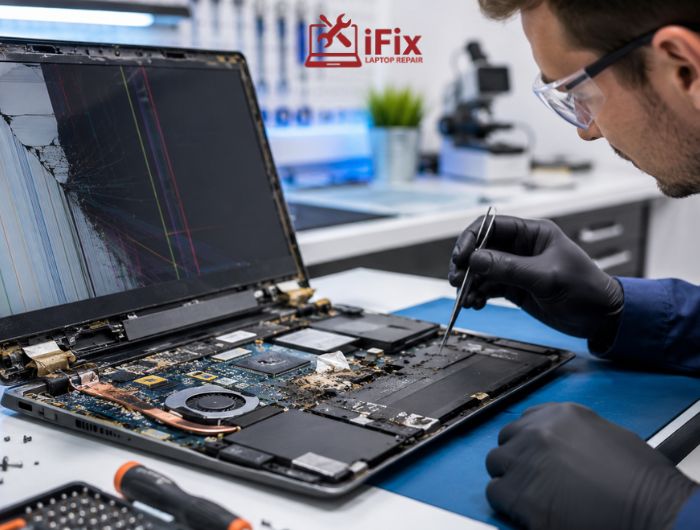
If your device suddenly becomes unresponsive, avoid repeatedly restarting it or attempting risky DIY repairs.
Instead:
- Stop using the device immediately.
- Avoid installing recovery software on failing drives.
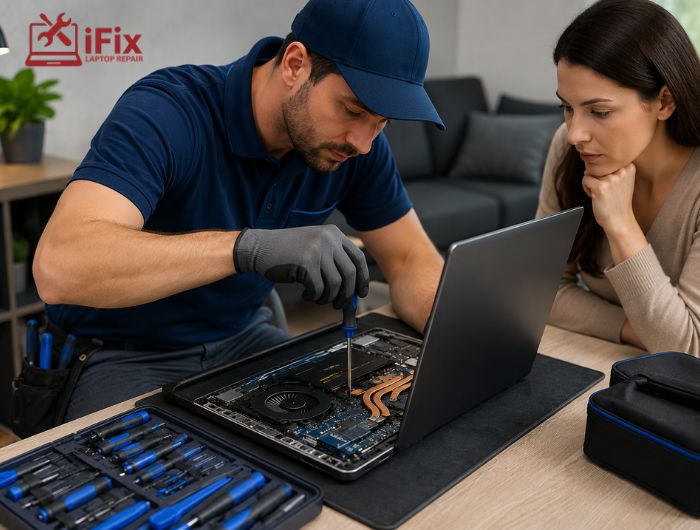
- Contact a professional repair technician.
- Discuss data recovery options before further damage occurs.
→ Have questions about backups, repairs, or recovering lost files? Our experts are ready to help.
Conclusion
Knowing how to back up your device before it breaks is one of the most effective ways to prevent permanent data loss. Whether you choose cloud storage, external drives, or both, creating regular backups protects your files when unexpected problems occur.
Start today, test your backups regularly, and make them part of your routine. A few minutes spent backing up now can save years of valuable memories and important documents later.
Frequently Asked Questions
What is the safest way to back up a device?
The safest approach combines cloud storage with an external backup drive.
Can I back up my device without cloud storage?
Yes. External hard drives, SSDs, and USB drives can all store local backups.
How much storage do I need?
Choose storage that exceeds your current data size by at least 30% to allow for future growth.
Should I keep more than one backup?
Yes. Following the 3-2-1 backup rule provides better protection against unexpected failures.
Can I recover files if my device will not turn on?
In many cases, professional technicians may recover files depending on the type and extent of the hardware failure.
