 Skip to content


Printers have a strange habit of failing at the worst possible moment. You press “Print,” wait a few seconds, and nothing happens. No sound. No paper. Just frustration. This is one of the most common reasons people search for printer repair Las Vegas services.
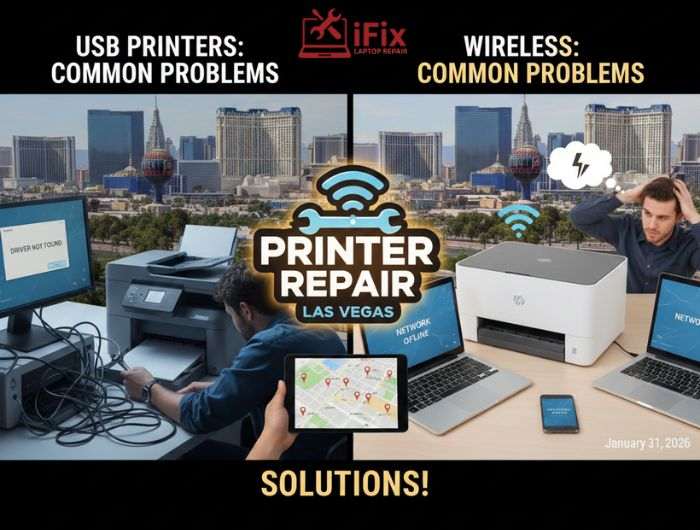
Both USB and wireless printers have weak points. Some problems are easy to fix at home, while others need expert attention. In this guide, we explain where printers usually fail, why those problems happen, and how professional printer repair Las Vegas technicians can help when basic steps are no longer enough.
Why Printers Fail When You Need Them Most _ 5 Common Reasons
Printers have a special talent for acting up at the worst possible moment. Here are the top five reasons they usually fail when you need them most.
- Empty or clogged ink and toner
Ink runs out without much warning, or dried ink clogs the nozzles after a period of inactivity. The printer looks fine, but nothing comes out properly.
- Paper jams and misfeeds
Slightly bent paper, overfilled trays, or dust inside the rollers can cause paper jams. Even when you clear it, the printer may refuse to continue.
- Driver or software issues
Updates to your computer or operating system can break the connection. The printer is on, but your device suddenly “can’t find” it.
- Network and connectivity problems
Wi-Fi printers drop off the network more often than you expect. A weak signal or router reset is enough to stop printing completely.
- Lack of regular maintenance
Printers that sit unused collect dust and dried ink. Without occasional cleaning and test prints, small issues build up and show up at the worst time.
How USB and Wireless Printers Connect
Understanding how printers connect helps explain why they fail.
How USB Printers Work
USB printers send data directly from a computer through a cable. This direct path makes them reliable, especially for single users. However, physical connections can wear out over time.
How Wireless Printers Work
Wireless printers use Wi-Fi to communicate with devices through a router. This allows printing from phones, laptops, and tablets. The downside is that wireless printers depend on network strength and correct settings.
Common Failure Points in USB Printers
The following are common failure points found in many USB printers.
Worn or Damaged USB Cables
USB cables bend and twist daily. Over time, the inside wires weaken. This is one of the top causes of a USB printer not working issue.
Faulty USB Ports
Dust or wear inside a computer’s USB port can block communication. Switching ports sometimes solves the problem.
Driver Conflicts
Operating system updates often cause driver problems. When drivers fail, the printer may appear connected but refuse to print.
Power Supply Problems
Loose power cords or failing power units can cause random shutdowns during print jobs.
- Helpful fact: Nearly 25% of USB printer issues are caused by cable or port damage, according to device repair data.
→ Fix USB Printer Problems Fast
If your USB printer stops responding again and again, professional printer repair Las Vegas services can prevent deeper hardware damage.
Common Failure Points in Wireless Printers
The following are common failure points found in many wireless printers.
Weak Wi-Fi Signal
Wireless printers need a steady signal strength. Distance from the router or thick walls can cause frequent dropouts.
Network Changes
Changing your router or Wi-Fi password is a leading cause of printer not connecting to WiFi problems.
IP Address Conflicts
When networks assign new addresses, printers may lose their connection and appear offline.
Outdated Firmware
Old firmware struggles to keep up with new routers and security settings.
- Industry insight: Over 40% of wireless printer repair requests are linked to network configuration errors.
USB vs Wireless Printers: Reliability Comparison
Area | USB Printers | Wireless Printers |
Connection type | Direct cable | Wi-Fi network |
Setup difficulty | Low | Medium to high |
Common failures | Cable, drivers | Signal, settings |
Best for | Single users | Homes and offices |
Printer Connectivity Repair: Steps You Can Try First
Before calling a technician, try these safe steps:
- Restart the printer and device
- Check cables and power connections
- Reconnect Wi-Fi settings
- Update printer drivers
- Move the printer closer to the router
If problems continue, professional printer connectivity repair ensures the issue is fixed properly instead of repeating.
Need Guided Troubleshooting?
For step-by-step guidance and expert support when basic fixes don’t work, use our troubleshooting printer services.
When Home Fixes Are Not Enough
Some printer problems look small but can lead to long-term damage if ignored. Call a professional if:
- The printer disconnects often
- Print jobs get stuck or disappear
- Wireless setup fails repeatedly
- Office printers slow down daily work
Reliable office printer repair service providers can diagnose hardware and software problems together.
Why Customers Rely on iFixLaptopRepair for Printer Repair Las Vegas
At iFixLaptopRepair, we apply professional repair standards to printers just as we do for computers.
- Over 20 Years of Experience
With 20+ years of expert services, our technicians understand printer systems inside and out.
- FREE Diagnostics and Consultation
Unsure what’s wrong? Get free diagnostics before committing to any repair.
- Certified A+ Technicians
Our team includes A+ Certified, Apple Certified, and Microsoft Certified technicians, ensuring accurate diagnostics.
- Quick, Same-Day Printer Repairs
Many printer issues are fixed the same day. Most standard repairs are completed within 24–48 hours.
- Affordable and Transparent Pricing
Clear quotes are provided before work begins. No hidden fees. Free consultation included.
- Genuine Parts and Care
We use genuine OEM parts whenever possible to extend printer life.
- 90-Day Warranty Support
Every printer repair includes a 90-day warranty on parts and labor.
These benefits make iFixLaptopRepair a trusted choice for printer repair Las Vegas customers rely on.
Practical Printer Maintenance Checklist
This practical printer maintenance checklist is part of our Las Vegas printer care program for reliability.
- Clean paper trays and rollers regularly to prevent jams
- Replace ink and toner before they fully run out
- Keep firmware and printer drivers up to date
- Use the correct paper type and store it properly
- Power down the printer correctly after use
- Print a test page weekly to avoid ink drying
- Keep the printer dust-free and well-ventilated
Final Thoughts
USB and wireless printers fail for different reasons, but most issues follow clear patterns. Knowing these failure points helps you act early. When problems persist, professional printer repair Las Vegas services save time, protect equipment, and restore productivity.
If your printer keeps failing, expert help from iFixLaptopRepair is the smart next step. Call us now or get in touch with our expert team.

