 Skip to content


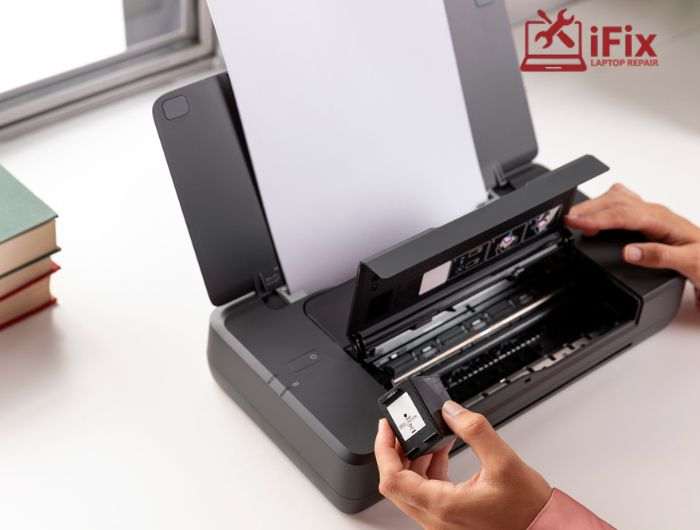
Anyone who has worked in an office knows how frustrating common printer problems can be. One minute everything is fine, and the next the printer refuses to cooperate. It might sound funny in a movie, but when you are on a deadline, printer trouble is stressful.
Printers do a lot of work behind the scenes. They pull paper, heat toner, and place ink with precision. When one small part is off, problems show up fast. The good news is that many common printer problems have simple fixes if you know what to look for.
Below, we break down the most common printer problems, explain why they happen, and show you how to fix them without technical jargon. And when a quick fix isn’t enough, professional printer repair services can help get your office back up and running quickly.
Frustrated with Your Printer? Learn How to Fix Printer Issues
Frustrated by printer issues? Explore simple and effective printer troubleshooting tips for the 10 most common printer problems to keep your workflow smooth.
1. Paper Jams
Paper jams occur when paper is misaligned, trays are overloaded, or low-quality paper causes dust buildup, leading to common printer quality problems and disrupted printing.
Solutions:
- Remove jammed paper slowly and carefully
- Reload paper evenly in the tray
- Use good-quality paper
- Clean rollers to remove dust buildup
Printer Paper Jam Support
Frequent jams? iFixLaptopRepair can inspect rollers and sensors to stop printer paper jams for good.
2. Lines or Streaks on Paper
Lines or streaks appear when dirt, toner residue, or worn internal parts interfere with how ink or toner is applied to the page.
Solutions:
- Clean scanner glass and mirrors
- Check toner or drum condition
- Call a technician if lines remain
3. Wrinkled or Creased Pages
Wrinkled pages usually mean worn rollers, damaged trays, or moisture in the paper causing it to bend during printing.
Solutions:
- Replace damaged paper
- Store paper in a dry area
- Inspect trays and rollers
4. Prints Are Too Light or Too Dark
This is one of the most common printer problems and it occurs when toner levels are low, print density settings are incorrect, or cartridges are old or incompatible.
Solutions:
- Check ink or toner levels
- Reset print density settings
- Replace old cartridges
→ Unsure which cartridge to use? We help you choose the right ink to avoid print quality problems.
5. Spots or Dots on Pages
Repeated dots in the same spot usually come from dirt on the glass or a damaged drum transferring marks onto every page.
Solutions:
- Clean glass and mirrors
- Replace the drum if spots persist
6. Misaligned or Distorted Text
Text that looks uneven or shifted often points to cartridge issues, incorrect paper settings, or poor print head alignment.
Solutions:
- Check ink levels
- Align the print head
- Confirm correct paper type
7. Low Print Quality
Blurry images or dull colors are often caused by software settings, outdated drivers, or mismatched resolution settings.
Solutions:
- Adjust print quality settings
- Update printer drivers
- Match screen and print resolution
8. Printer Shows Offline
A printer may appear offline due to Wi-Fi issues, loose cables, printer driver issues, or incorrect system settings.
Solutions:
- Check cables and network connection
- Restart printer and computer
- Update printer drivers
9. Print Queue Is Stuck
When multiple print jobs pile up, the printer can freeze and stop processing new requests.
Solutions:
- Cancel unnecessary print jobs
- Restart the printer
- Reboot the computer
10. Printer Won’t Print or Scan
Multi-function printers may stop printing or scanning when drivers are outdated or communication between devices fails.
Solutions:
- Restart the printer
- Update print and scan drivers
- Recheck device settings
Printer Maintenance Tips Every User Should Know
Reducing common printer problems starts with simple habits:
- Clean the printer regularly to prevent dust buildup and ink smudges
- Use original or high quality ink and toner to avoid clogs and leaks
- Keep printer drivers and firmware updated for smoother performance
- Load paper properly and avoid overfilling the tray
- Use the right paper type for the job to prevent jams and misfeeds
- Turn the printer off correctly instead of unplugging it
- Print at least once a week to stop ink from drying inside the nozzles
- Place the printer in a dry, dust free area to protect internal parts
Ask iFixLaptopRepair about printer maintenance kits to keep devices running smoothly and avoid costly repairs.
How to Choose the Right Ink and Toner
- Low quality or incompatible cartridges can cause fading, streaks, smudging, and printer error messages
- Poor ink or toner may clog printheads and damage internal printer parts over time
- Always use manufacturer recommended or high quality certified cartridges
- Correct cartridges deliver sharper text, accurate colours, and consistent results
- Good quality ink and toner reduce maintenance issues and extend printer life
- Store cartridges in a cool, dry place and keep them sealed until use
→ Need help selecting the right ink? iFixLaptopRepair can recommend reliable cartridges that protect your printer.
Why iFixLaptopRepair Should Be Your Go-To Printer Repair Service
iFixLaptopRepair has resolved 500+ office printer issues, handling everything from simple paper jams to major hardware failures for businesses.
Why clients trust us:
- 20 years of repair experience
- Accurate and free diagnostics
- Skilled and certified technicians
- Fast turnaround times
- Honest, transparent pricing
- High-quality parts for lasting repairs
- Excellent customer support
- Trusted by hundreds of clients
Final Thoughts
Keeping your printer in top condition doesn’t have to be stressful. Simple maintenance, using the right ink and toner, and addressing issues early can save time and prevent costly repairs. For expert help with common printer problems, trust our skilled technicians. Contact us or call us today for immediate assistance and keep your printer running smoothly.

