 Skip to content




One of the most frustrating problems is a printer printing blank pages. You send a document to print, the paper comes out, but it’s completely blank. This issue can happen at home, school, or the office, and it often leaves people unsure about what to fix first. The good news is that this problem usually has a clear reason and a simple solution.
In this guide, we will explain why printers print blank pages, how to tell if the issue is software or hardware-related, and what steps you can try before calling a repair expert.
Quick Things to Check First
Before going deeper, start with a few basic checks. Many printing issues are solved at this stage.
- Make sure the ink or toner is not empty
- Check that the cartridges are installed correctly
- Remove any protective tape or seal on new cartridges
- Confirm the paper is loaded properly
Sometimes, a printer blank page problem happens just because one small step was missed. A hidden paper jam or paper dust buildup can block the printing path. This can stop ink from reaching the page properly.
→ Paper Jam Support
If your printer shows paper errors or feeds paper unevenly, get help removing paper jams safely to prevent future blank page printing.
Software Causes of Printer Printing Blank Pages
In many cases, the issue is not the printer itself but the software controlling it.
1. Wrong Printer Settings
If your printer settings do not match the paper size or print mode, pages may come out blank. For example, printing a color file in grayscale with empty color cartridges can cause blank output.
2. Outdated or Corrupt Drivers
Printer drivers help your computer talk to the printer. If they are outdated or damaged, the printer may receive the wrong data. Studies show that over 30% of printing issues are linked to driver problems.
Updating or reinstalling the driver often fixes the problem.
3. File or App Problems
Some documents are damaged or not supported by the printer. Try printing a different file or a test page. If the test page works, the file is likely the issue, not the printer.
Hardware Causes of Blank Page Printing
If software checks do not help, the problem may be inside the printer.
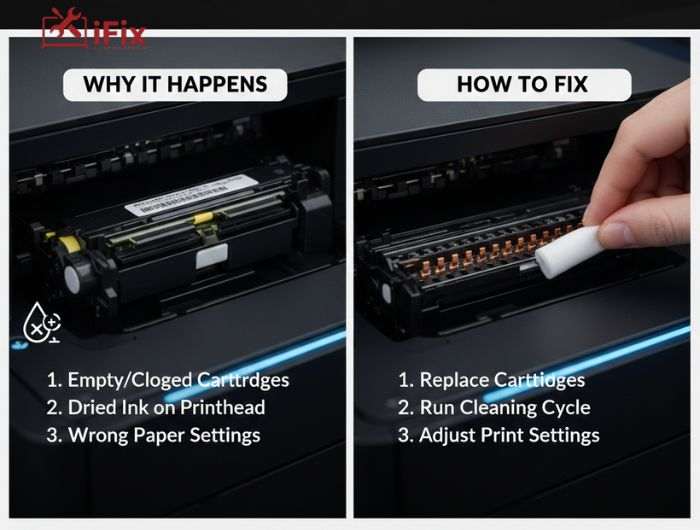
1. Ink or Toner Issues
Even if your printer shows ink is available, the cartridge may be clogged or faulty. Inkjet printers are especially sensitive to dried ink if not used often. In fact, printers left unused for weeks are twice as likely to print blank pages.
2. Printhead Problems
The printhead sprays ink onto the paper. If it is blocked or damaged, the printer cannot print properly. Running a printhead cleaning cycle can often solve this.
3. Internal Printer Faults
Loose cables, damaged sensors, or ink delivery problems can also cause blank pages. These issues usually need professional inspection.
Need Help With Printer Repair?
If your printer still prints blank pages after all fixes, it may need hands-on repair. Internal parts wear out over time, especially in older printers.
How to Tell If It’s Software or Hardware
Here are easy ways to narrow it down:
- Print a test page directly from the printer menu
- Connect the printer to another computer
- Try a different USB cable or Wi-Fi network
If the test page is blank, the problem is likely hardware. If it prints fine, software settings or drivers are the cause.
Step-by-Step Fixes You Can Try
If you are dealing with a printer printing blank pages, try these steps in order:
Step# 1: Restart the printer and computer
Turn off the printer and computer, wait thirty seconds, then restart both to clear stuck jobs, memory glitches, and temporary errors causing blank page printing issues.
Step# 2: Check and reset printer settings
Open printer settings, confirm correct printer selection, paper size, and quality, then reset to defaults to prevent draft, grayscale, or misconfigured options blocking ink output.
Step# 3: Update or reinstall printer drivers
Download the latest printer driver from the manufacturer, uninstall old versions if needed, and reinstall to fix compatibility issues that cause blank prints often today.
Step# 4: Run printhead cleaning and alignment
Run printhead cleaning and alignment from maintenance tools to clear dried ink, unclog nozzles, and ensure even ink flow after inactivity or long periods unused.
Step# 5: Replace ink or toner cartridges
Check ink or toner levels, remove cartridges, verify seals are removed, and replace empty or faulty units to restore proper printing quality, consistency, and reliability.
Simple Tips to Prevent Printer Blank Pages
- Print at least once a week
- Store ink cartridges in sealed packaging
- Keep printer drivers updated
- Use good-quality, dry paper
- Power off the printer using the power button
- Avoid leaving the printer unused for long periods
- Run a test print regularly
- Keep the printer clean and dust-free
- Replace ink cartridges before they run empty
- Use compatible ink or toner only
→ Contact Us for Expert Guidance
Still unsure why the printer printing blank pages keeps happening? Every printer model is different, and some issues need expert eyes.
Final Thoughts
Dealing with a printer printing blank pages can feel annoying, but it is usually fixable. By checking settings, software, and hardware step by step, you can find the real cause without stress.
Start simple, move carefully, and ask for help when needed. A working printer saves time, money, and frustration. Call us now for professional help and get your printer back to normal quickly.

