 Skip to content



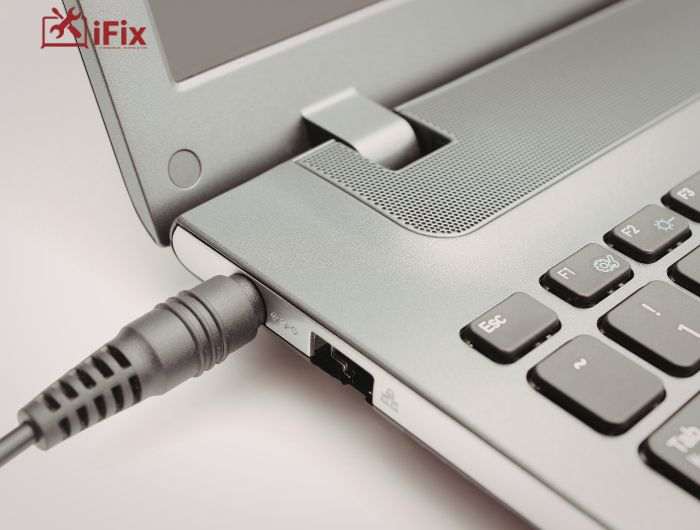
If your laptop only charges when the cable is pushed, tilted, or held in place, that’s not normal, and it’s not something to ignore. This is one of the earliest signs of a loose laptop charging connection, a problem that affects thousands of laptops every day.
What many users don’t know is that this issue often starts small but gets worse with time, turning a simple connection problem into a damaged charging port or even a motherboard issue.
In this guide, you’ll learn why charging connections loosen, what you can safely do to fix the problem at home, and how to know when professional laptop repair service is the right move to avoid costly damage.
What Does a Loose Charging Connection Mean?
When your laptop charger keeps disconnecting, the power flow becomes unstable. This can cause slow charging, sudden battery drain, or random shutdowns. Over time, the problem usually gets worse.
Most charging issues come from three areas:
- The charging cable
- The charging port
- Internal wear from daily use
Knowing where the problem starts helps you fix it the right way.
Common Signs You Should Not Ignore
You may be dealing with a problem like “laptop not charging properly” if you notice:
- Charging only works when the cable is bent or held
- The charging light turns on and off
- The battery percentage goes up and down
- The laptop shuts down even when plugged in
These signs mean the connection is not stable and needs attention.
Why Laptop Charging Connections Become Loose
Charging ports are small and used every day. Over time, they wear out.
The most common causes include:
- Pulling the charger out at an angle
- Tripping over the charging cable
- Using low-quality or wrong chargers
- Dust and lint are tucked inside the port
Even normal daily use can slowly weaken the connection.
Step 1: Check the Charger First
Before assuming the port is damaged, inspect the charger.
Look for:
- Frayed or bent cables
- Loose adapter ends
- Overheating near the plug
If possible, test your laptop with another compatible charger. Many cases that look like a loose laptop charging connection are actually caused by a faulty cable.
Step 2: Clean the Charging Port Safely
Dust inside the port can stop the charger from fitting properly.
Safe cleaning tips:
- Turn off the laptop completely
- Use a wooden toothpick or soft brush
- Gently remove visible dust
- Never use metal objects or liquids
Cleaning often restores a firm connection without any repair.
Step 3: Reduce Strain While Charging
Poor charging habits make the problem worse.
Try these simple changes:
- Place the laptop on a flat surface
- Avoid using it on the bed or couch while charging
- Do not twist or bend the cable
- Let the charger hang naturally, not pulled tight
Reducing strain can prevent a loose laptop charging connection from becoming permanently damaged.
Temporary Fixes You Can Use Carefully
If you need power urgently, short-term solutions may help.
Safe temporary actions:
- Adjust the cable angle gently
- Use a cable clip to reduce movement
- Keep the laptop still while charging
Avoid tape, glue, or forcing the charger. These can damage the port further.
When the Charging Port Is Damaged
If the charger still feels loose after cleaning and testing, the port may be broken.
Signs of port damage:
- The port moves when touched
- Charging only works in one position
- Burning smell or heat near the port
At this stage, a loose laptop charging connection usually means internal repair is needed.
If your charger feels loose, charging port repair fixes the real issue. Professional repair restores stable power, protects the motherboard, and helps avoid bigger, more expensive damage later.
Can You Fix a Charging Port Yourself?
Charging port repair involves soldering and opening the laptop. For most users, DIY repair is risky.
Common DIY risks include:
- Damaging the motherboard
- Losing important data
- Making the repair more costly
Professional repair is the safer choice for long-term results.
How to Prevent This Problem in the Future
Good habits can protect your laptop:
- Unplug gently, not forcefully
- Store chargers properly
- Use the correct charger model
- Avoid charging while the laptop is hanging or tilted
These steps reduce the chance of another loose laptop charging connection.
When to Get Professional Help Immediately
Seek help if:
- The charger sparks or overheats
- The laptop stops charging completely
- The port feels very loose or broken
Ignoring these signs can cause serious internal damage.
Final Thoughts
A loose laptop charging connection may start as a small issue, but it can shorten your laptop’s life if ignored. Simple checks and cleaning often help, but damaged ports need professional care.
If your laptop still won’t charge properly, contact us for expert laptop charging port repair. We’re here to help restore safe, reliable power and keep your laptop running longer.

