 Skip to content
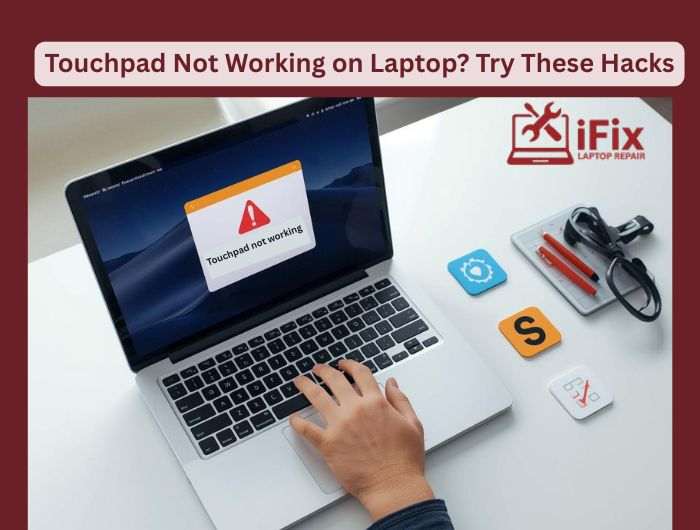
A laptop touchpad that stops working can be frustrating, but most issues are easy to fix. Here’s a simple guide you can follow, and if the problem persists, professional touchpad repair services can get your laptop back to smooth operation.
1. Check Touchpad Settings
Go to your laptop’s Settings > Devices > Touchpad (Windows) or System Preferences > Trackpad (Mac). Make sure the touchpad is enabled. Sometimes a simple toggle can fix the problem.
2. Use Function Keys
Many laptops have a function key combo (like Fn + F7 or a key with a touchpad icon) to enable or disable the touchpad. Pressing it accidentally is a common reason it stops working.
3. Update or Reinstall Drivers
Outdated or corrupt drivers can cause the touchpad to malfunction. On Windows, open Device Manager, locate the touchpad, and select Update driver. If that doesn’t work, uninstall the driver and restart the laptop; it will reinstall automatically.
4. Look for Hardware Issues
If the touchpad is physically damaged or unresponsive even after software fixes, it might be a hardware problem. Check for:
- Loose connections (on removable laptops)
- Visible damage or wear
- Moisture or debris under the touchpad
5. Restart Your Laptop
Sometimes a quick restart solves temporary glitches.
| Get Professional Help If your touchpad still isn’t working, professional laptop repair services can diagnose and fix hardware or driver issues quickly. Contact our experts today for fast and reliable support. Contact Us To Repair Your Laptop |

