 Skip to content
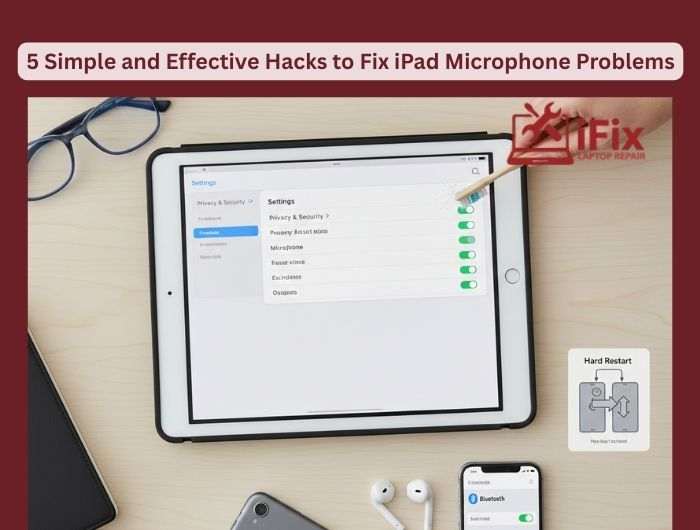
Is your iPad microphone acting up? Maybe your voice sounds muffled, or apps like FaceTime and Zoom aren’t picking it up. Don’t panic! Most iPad mic issues are easy to fix at home. Here are 5 genius hacks that are simple, effective, and user-friendly.
Hack 1: Check for Dust and Debris
Small particles can block your iPad’s microphone.
What to do:
- Use a soft-bristled brush or a clean, dry toothbrush.
- Gently clean the microphone openings (usually near the bottom or front).
- Avoid using liquids, as this can damage the mic.
You’d be surprised how often this simple step restores crystal-clear sound instantly.
Hack 2: Restart Your iPad
Sometimes the microphone issue is just a software glitch.
Steps:
- Press and hold the power button.
- Slide to turn off.
- Wait 30 seconds, then restart.
This clears temporary bugs and refreshes system settings, which can fix many common microphone problems.
Hack 3: Check App Permissions
Apps like Zoom, FaceTime, or Voice Memos need permission to access your microphone.
How to check:
- Go to Settings > Privacy > Microphone.
- Make sure the apps you use have permission.
If an app is blocked, your mic won’t work, even if it’s physically fine.
Hack 4: Remove Case or Cover
Some cases block the microphone or interfere with sound.
Tip:
- Take off the iPad case and test the microphone.
- If the sound improves, consider using a case that doesn’t cover mic openings.
This is an easy way to rule out physical obstruction.
Hack 5: Update or Reset Settings
Outdated software or incorrect settings can affect your mic.
Try:
- Updating iOS: Settings > General > Software Update
- Reset all settings: Settings > General > Transfer or Reset iPad > Reset > Reset All Settings
This won’t delete your apps or data, but can fix hidden software problems.
| If these hacks don’t fully fix your iPad microphone, professional repair can save time and prevent damage. Contact iFixLaptopRepair for expert iPad mic repair today! [Book Your iPad Mic Repair] |

