 Skip to content

Your computer requires regular maintenance to remain reliable and perform optimally. A trusted PC cleaning service Las Vegas helps protect your system from dust, clutter, and performance issues that build up over time. This guide explains how to clean your computer thoroughly, both physically and digitally, to keep it in good condition for years.
Over time, dust can block airflow, trap heat, and slowly damage internal parts. This often leads to PC overheating due to dust, noisy fans, and sudden slowdowns. Digital clutter, like unused programs and temporary files, can also reduce speed. Whether you clean at home or rely on a PC cleaning service in Las Vegas, regular maintenance makes a clear difference.
Why Regular PC Cleaning Matters
Dust buildup can cause long-term problems if ignored. Many repair cases involve PC dust damage that could have been avoided with timely cleaning. Heat stress, reduced airflow, and worn components are common results of poor maintenance.
By offering a full range of computer repair service Las Vegas, iFixLaptopRepair helps prevent damage and maintain long-term performance.
Essential Tools for Cleaning Your Computer
Before you start, make sure you have the right tools to avoid damage:
- Compressed air can
- Microfiber cloths
- Isopropyl alcohol (99%)
- Cotton swabs
- Anti-static wrist strap
- Screwdrivers if needed
- Dust mask
- Thermal paste for CPU cleaning
These are also the tools used in a professional PC cleaning setup.
Part 1: Physical Cleaning – How to Clean Your PC Hardware
Safety First: Preparation Steps
Safety matters when cleaning a computer. Static electricity and moisture can cause damage, so follow these steps:
- Power down your computer completely
- Unplug all cables
- Move your PC to a well-ventilated area
- Wear a dust mask
- Ground yourself with an anti-static wrist strap
How to Clean a Computer Case Exterior
The exterior collects dust and fingerprints that can enter the system over time:
- Wipe the case with a slightly damp microfiber cloth
- Use compressed air to clean vents and ports
- Clean dust filters if your case has them
- Clean fan grills carefully
Cleaning Inside Your Computer
Internal parts are more sensitive and often handled by a PC internal cleaning service, but light cleaning can be done at home:
- Remove the side panel
- Blow out loose dust with compressed air
- Hold fans still to prevent damage
- Clean the heat sinks and the GPU carefully
Pay close attention to:
- CPU fan and heatsink
- Graphics card fans
- Case fans
- Power supply vents
- RAM slots
- Motherboard surfaces
Heavy dust buildup may require PC dust damage repair, which is best handled by professionals.
How to Clean Computer Peripherals
Keyboard Cleaning
Keyboards collect dirt quickly:
- Unplug or turn off the keyboard
- Use compressed air between keys
- Clean with cotton swabs dipped in isopropyl alcohol
- Wipe keycaps with a microfiber cloth
Mouse Cleaning
- Unplug the mouse
- Wipe the exterior gently
- Clean the sensor area with a dry cotton swab
- Remove debris from tracking surfaces
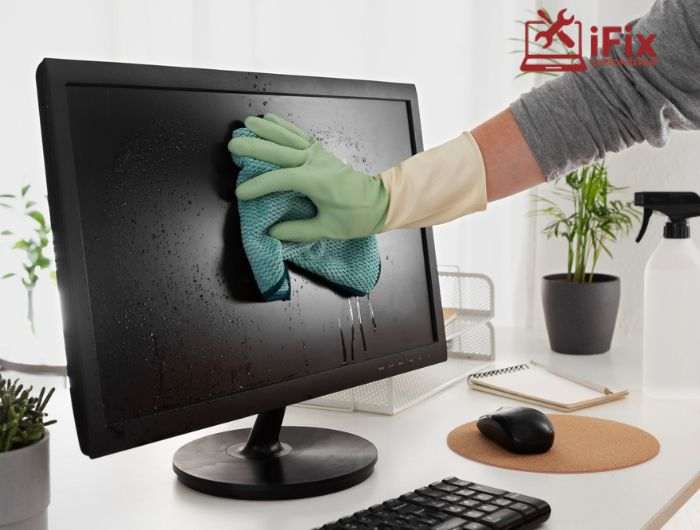
Monitor Cleaning
- Power off the display
- Use a dry microfiber cloth first
- Slightly dampen the cloth for stubborn marks
- Never spray liquid directly on the screen
Part 2: Digital Cleaning – Optimize Your PC Performance
System Cleanup
Digital clutter affects performance just like physical dust.
Disk Cleanup:
- Remove temporary files
- Clear system files
- Empty recycle bin
Storage Optimization:
- Uninstall unused programs
- Remove duplicate files
- Move large files to external storage
Browser Cleanup
- Clear cache and cookies
- Remove unused extensions
- Keep browsers updated
System Maintenance
- Update Windows
- Run disk checks
- Update drivers
- Scan for malware
Users searching for computer cleaning near me often discover that digital issues also need attention.
Maintenance Schedule to Keep Your Computer Clean
Monthly Tasks
- Clean keyboard and mouse
- Wipe the monitor and case exterior
- Clear browser cache
Quarterly Tasks
- Clean internal dust
- Check fans
- Run a full system scan
Annual Tasks
- Deep clean all components
- Replace thermal paste if needed
- Check cables and airflow
Many users schedule an annual PC cleaning service in Las Vegas to handle this safely.
Troubleshooting Common Issues
When problems arise after cleaning, here’s how to address them:
PC Running Hot After Cleaning
- Check if all fans are spinning freely
- Ensure proper thermal paste application
- Verify all components are properly seated
- Check airflow configuration
Performance Issues
- Run disk cleanup again.
- Check startup programs
- Verify system updates
- Scan for malware
Tips to Keep Your PC Cleaner Longer
Prevention is better than a cure. These practices will help maintain a cleaner computer:
- Position your computer off the floor
- Use dust filters on intake fans
- Keep pets away from your PC
- Maintain good airflow around your system
- Regular maintenance schedule
- No eating or drinking near your computer
When to Seek Professional Help
You should consider expert support if:
- Your PC is under warranty
- Dust buildup is severe
- You hear unusual noises
- Performance drops suddenly
iFixLaptopRepair provides reliable computer repair service in Las Vegas, including cleaning, diagnostics, and preventive maintenance.
Conclusion
Regular cleaning keeps your computer running smoothly and helps prevent long-term damage. Whether you clean it yourself or rely on a PC cleaning service in Las Vegas, consistent care improves performance and system life. By combining physical cleaning with digital maintenance and getting support from professionals like iFixLaptopRepair when needed, your computer can stay reliable for years.

