


Has your computer stopped working, started running slowly, or developed an unexpected problem? If you’re unable to bring it to a repair shop, an onsite repair visit can be a practical solution. The onsite repair service process allows a qualified technician to inspect and repair many hardware and software issues at your home or workplace.
Knowing what happens before, during, and after the appointment can help you prepare, reduce downtime, and ensure the repair runs smoothly. In this blog, we’ll walk you through each step of the on-site repair process and explain what to expect during the visit.
→ Book an Onsite Repair Visit
Need professional assistance without leaving your home or office? Book an onsite repair visit and let our technicians diagnose and repair your device at your location.
What Is an Onsite Repair Service?
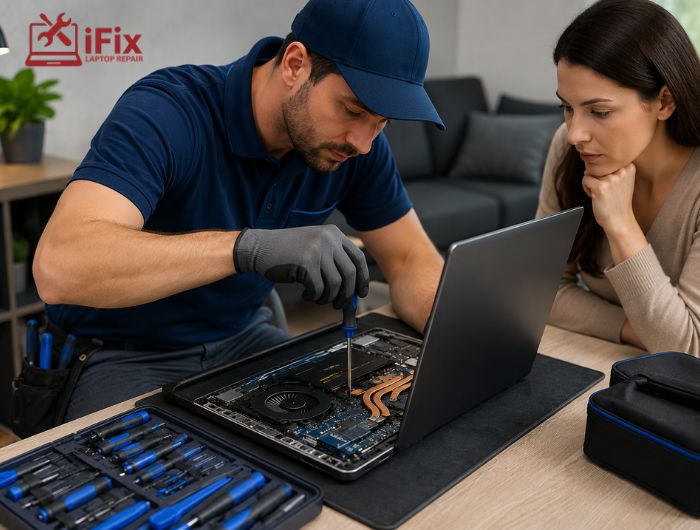
An onsite repair service involves a technician visiting your home, office, or business to diagnose and repair computer-related issues. Instead of transporting your device to a repair shop, repairs are completed at your location whenever possible.
Many common problems can be resolved onsite, including:
- Slow computer performance
- Software installation issues
- Virus or malware removal
- Network connectivity problems
- Printer setup and troubleshooting
- Hardware upgrades
- Operating system errors
While many repairs can be completed onsite, some complex hardware repairs may require specialised equipment available only in a repair workshop.
Onsite Repair Service Process: A Step-by-Step Guide
Whether you’re booking your first onsite repair or simply want to know what to expect, this step-by-step guide explains each stage of the onsite repair service process, including preparation, diagnosis, repairs, testing, and follow-up advice.
Step 1: Booking Your Appointment
The first step in the onsite repair service process is scheduling an appointment.
When you contact the repair provider, you’ll usually be asked for basic information about:
- Your device type
- The issue you’re experiencing
- When the problem started
- Any error messages you’ve noticed
- Your preferred appointment time
Providing accurate information helps the technician arrive prepared with the appropriate tools and replacement parts whenever possible.
Choosing a convenient appointment time also ensures someone is available to explain the issue and answer any questions during the visit.
Step 2: Preparing Before the Technician Arrives
A little preparation can help the appointment run more efficiently.
Before your scheduled visit:
Back Up Important Files
Although repairs are generally carried out carefully, creating a recent backup helps protect important documents, photos, and other personal files.
Make the Device Accessible
Place your computer in an area where the technician can easily access power outlets, cables, and connected devices.
Gather Accessories
If the issue involves charging, displays, or external devices, keep the relevant cables, chargers, or accessories nearby.
Describe the Problem Clearly
Make note of when the problem occurs, how often it happens, and whether any recent software or hardware changes were made.
These details often help reduce diagnosis time.
If you’re unsure what’s causing the issue, our computer diagnostic services can help identify hardware or software faults before repairs begin.
Step 3: Device Inspection and Diagnosis
Once the technician arrives, the inspection begins.
The diagnosis usually starts with discussing the symptoms you’ve experienced, followed by a physical inspection of the device.
Depending on the problem, the technician may perform:
- Visual hardware inspection
- Startup testing
- Operating system checks
- Storage health analysis
- Memory testing
- Network diagnostics
- Software troubleshooting
The goal is to identify the root cause rather than simply treating the symptoms.
According to Microsoft’s Windows troubleshooting guidance, diagnostic testing is an important first step because many performance issues can have multiple possible causes.
Not every problem requires replacing hardware. In many cases, software conflicts, outdated drivers, or configuration issues can be resolved without replacing any components.
Step 4: Explaining the Findings
After completing the inspection, the technician will explain what was found.
This discussion typically includes:
- The cause of the issue
- Whether it is hardware or software related
- Available repair options
- Whether replacement parts are required
- Estimated repair time
- Any recommendations for preventing similar issues
A good on-site repair visit should give you enough information to understand the problem before any work proceeds.
Some repairs can be completed immediately, while others may require ordering replacement components.
Step 5: Repair and Testing
Once you’ve approved the recommended repair, the technician will begin fixing the issue. The exact work depends on the diagnosis, but many common problems can be resolved during the onsite visit.
This may include:
- Installing software updates
- Removing viruses or malware
- Replacing compatible hardware components
- Configuring network settings
- Resolving operating system issues
- Optimising system performance
After the repair is complete, the technician will test the device to confirm everything is working correctly. Testing may include checking startup speed, running applications, verifying internet connectivity, and ensuring all repaired components function as expected.
→ Need an Onsite Repair Visit?
Experiencing problems with your device? Call us today to book an onsite repair visit. Our technicians will assess the issue and recommend the most suitable repair solution at your location.
Step 6: Final Checks and Maintenance Advice
Before the visit ends, the technician will usually perform final checks and share practical recommendations to help keep your device running smoothly.
These may include:
- Confirming the repair has resolved the issue
- Answering any questions about the repair
- Recommending software updates
- Advising on routine maintenance
- Suggesting hardware upgrades if appropriate
- Explaining how to avoid similar issues
Following these recommendations can improve your computer’s reliability and help prevent future problems.
When Is an Onsite Repair the Best Option?
The onsite repair service process is ideal for many situations, especially when moving your equipment is inconvenient or impractical.
Onsite repair is often suitable for:
- Desktop computers
- Home office setups
- Small business computers
- Network and Wi-Fi troubleshooting
- Printer installation and configuration
- Software problems
- Performance optimisation
- Minor hardware upgrades
However, some repairs may require workshop equipment or specialist tools.
For example, extensive motherboard repairs, liquid damage restoration, or advanced component replacement may need to be completed in a repair centre.
A technician can explain whether on-site repair is appropriate after completing the initial diagnosis.
Why Choose an Onsite Repair Visit?
Many customers choose onsite repairs because they offer convenience without compromising the quality of the service.
Benefits include:
- No need to transport your device
- Faster diagnosis for many common issues
- Repairs completed in a familiar environment
- Reduced downtime for home and business users
- Opportunity to ask questions during the visit
- Personalised maintenance recommendations
👉 Not sure whether an on-site repair is the right option?
Contact us to discuss your issue with our team. We’ll help determine whether an onsite visit or workshop repair is the most appropriate solution based on your device and the type of problem you’re experiencing.
Frequently Asked Questions
How long does an onsite repair visit usually take?
Most visits take between 30 minutes and two hours, depending on the issue.
Can every computer problem be repaired onsite?
No. Some complex hardware repairs require specialist equipment in a repair workshop.
Should I back up my files before the technician arrives?
Yes. Backing up important data is recommended before any repair.
Do I need to provide any equipment?
Have your charger, cables, and any accessories related to the issue available if possible.
Can hardware components be replaced during an onsite visit?
Yes. Many compatible parts can be replaced onsite, depending on the repair.
Is onsite repair suitable for businesses?
Yes. Onsite repair is commonly used for home offices and small business computer systems.
Conclusion
The onsite repair service process is designed to make computer repairs more convenient by bringing professional support directly to your home or workplace. From diagnosis and troubleshooting to testing and maintenance advice, each step helps ensure the issue is accurately identified and resolved.
If your device develops a problem that can be repaired onsite, a qualified technician can often restore its performance while minimising disruption to your day.
