
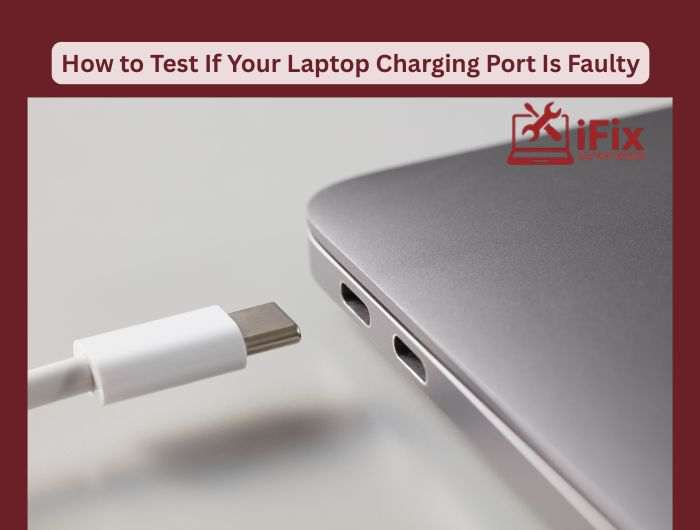
A faulty laptop charging port can disrupt work and cause frustration. Early detection helps prevent further damage and costly repairs. By using simple tests and inspections, you can quickly identify if the charging port is the problem, ensuring your laptop stays powered and fully functional without unnecessary downtime.
1. Check the Power Adapter
Before blaming the port, ensure your charger is working. Plug it into another compatible laptop or try a different power outlet. If the laptop charges, the adapter is fine.
2. Inspect the Port Physically
Look inside the charging port using a flashlight. Dust, debris, or bent pins can block the connection. Carefully clean the port with a soft brush or compressed air.
3. Wiggle Test
Gently move the charging plug while it’s connected. If the laptop charges inconsistently, the port may be loose or damaged. Avoid excessive force to prevent further issues.
4. Check Battery Indicators
Monitor your laptop’s battery icon or LED indicator. If it shows charging but the battery doesn’t increase, it could signal a port problem.
5. Test With Another Charger
Using a compatible charger can confirm whether the issue is the port or your original adapter.
6. Device Manager Check (Windows)
Open Device Manager → Batteries → Check for warning symbols. This can reveal software or hardware recognition problems.
7. Professional Inspection
If all else fails, a technician can safely test the port’s internal connections and repair or replace it if needed.
Detecting a faulty charging port early prevents battery damage, power interruptions, and costly replacements.
| For reliable laptop charging port repair and diagnostics, trust professional services to restore your device quickly and safely. Repair Your Charging Port Today |
