
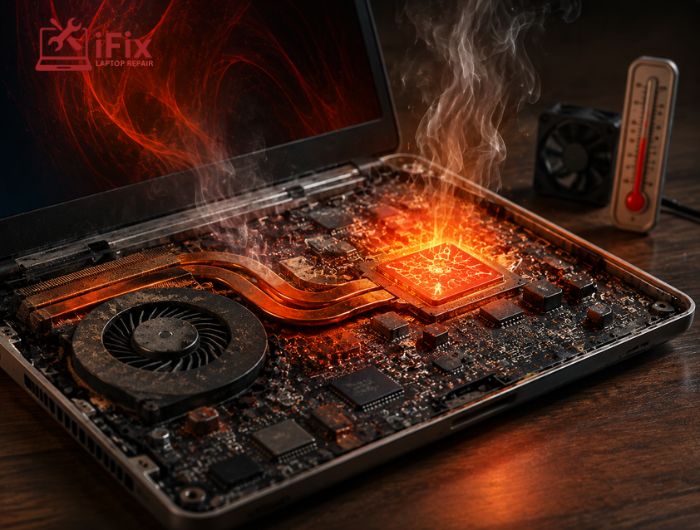
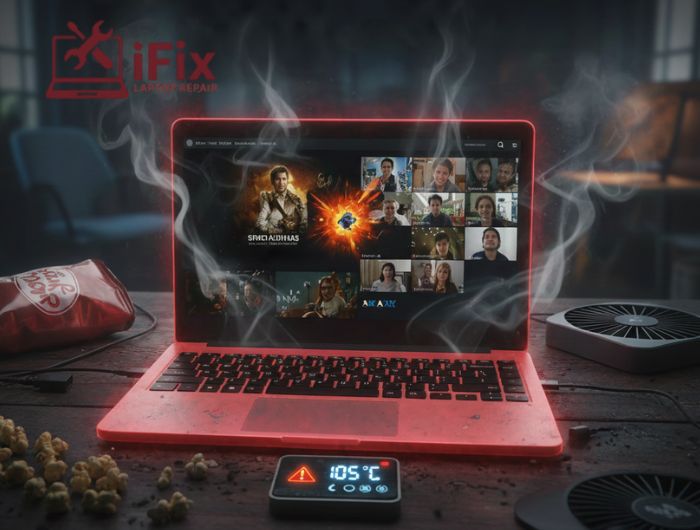
Laptop overheating while streaming is a problem many people notice but rarely understand. You open Netflix, join a Zoom meeting, or play a game, and suddenly the laptop fan is running loudly, the keyboard feels hot, and performance starts to dip. It feels wrong because these are everyday activities, not heavy technical work.
The truth is, modern laptops work harder than we think, even during simple tasks. Streaming video, video calls, and gaming all put steady pressure on internal components. Over time, that pressure turns into heat.
Let’s break down why this happens, the most common laptop overheating causes, and how to fix laptop overheating without turning into a tech expert.
What Happens Inside Your Laptop When You Stream Netflix
Laptop overheating while streaming often surprises people because watching a show feels passive. Internally, it is not.
When you stream video, your laptop is constantly:
- Decoding video frames in real time
- Processing audio
- Handling internet data
- Running the browser and background apps
High-resolution content makes this worse. HD and 4K streaming can raise CPU usage by 30 to 50 percent compared to basic browsing.
Interesting fact
Streaming one hour of HD video can generate more heat than editing a document for an entire afternoon.
If you keep multiple tabs open, run messaging apps, or sync files in the background, overheating of your laptop while streaming becomes almost inevitable.
Why Laptop Overheating During Gaming Is So Common
Laptop overheating during gaming is easier to understand. Games are demanding by nature.
Gaming pushes:
- CPU for game logic
- GPU for graphics rendering
- RAM for textures and assets
All of this happens continuously, not in short bursts. That is why gaming laptops often feel hot and why the laptop fan running loudly is expected during gameplay.
Signs that gaming heat is becoming a problem
- Sudden frame drops
- Fans are running at full speed constantly
- The laptop is becoming uncomfortable to touch
Lowering graphics settings can reduce temperatures immediately, especially if your laptop barely meets a game’s requirements.
Laptop Overheating on Zoom Calls: Why It Happens
Laptop overheating on Zoom calls feels unfair. You are just talking to people, right?
Video calls are more demanding than they appear because they:
- Keep the camera and microphone active
- Compress and decompress video constantly
- Use the CPU and network adapter nonstop
If your laptop already struggles with airflow or dust buildup, a one-hour Zoom call can raise internal temperatures significantly.
Turning off your camera when possible can noticeably reduce heat.
Common Laptop Overheating Causes Most People Ignore
Some causes of overheating have nothing to do with software or performance.
Blocked airflow
Using your laptop on:
- Beds
- Sofas
- Cushions
- Your lap
blocks ventilation and traps heat underneath.
Dust buildup
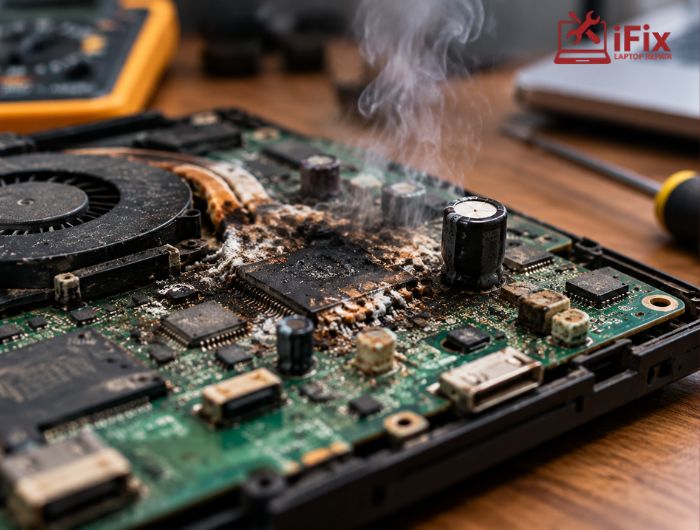
Dust collects inside fans and vents over time. It acts like insulation and prevents heat from escaping.
Aging thermal paste
Thermal paste transfers heat from the CPU to the cooling system. After a few years, it dries out and loses effectiveness.
Battery issues
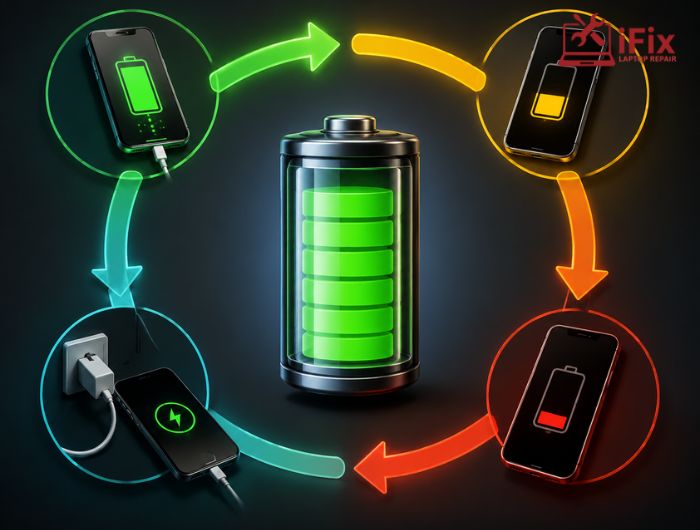
Old or swollen batteries can generate extra heat and disrupt internal airflow.
- If your battery isn’t holding a charge, we can help with laptop battery replacement to keep your laptop running like new.
How to Fix Laptop Overheating (Simple and Practical)
You do not need advanced tools to solve most heat issues.
Start with these basics
- Restart your laptop fully
- Install system and driver updates
- Close unused apps and browser tabs
Improve airflow
- Place your laptop on a hard, flat surface
- Use a laptop stand to lift it slightly
- Avoid direct sunlight
Clean the vents
- Use compressed air on intake and exhaust vents
- Clean every few months if you live in a dusty area
Reduce workload
- Lower game graphics settings
- Close background apps during streaming
- Turn off the camera during Zoom when possible
These steps alone can reduce laptop overheating while streaming and video calls significantly.
Need Professional Help?
If these tips don’t fully solve the problem, professional help can make a difference. Our team has 20 years of experience fixing laptops, from overheating issues to performance problems. Check out our laptop repair services for more details.
Quick Comparison: What Triggers Heat the Most
Activity | Heat Level | Main Cause |
Web browsing | Low | Light CPU usage |
Netflix streaming | Medium | Video decoding |
Zoom calls | Medium to high | Continuous CPU and camera use |
Gaming | High | CPU and GPU under constant load |
When Laptop Overheating Repair Is the Right Move
If basic fixes do not help, professional laptop overheating repair may be necessary.
Consider repair if:
- The laptop fan running loud never settles
- Heat appears during idle or light use
- The laptop shuts down unexpectedly
A technician can:
- Deep clean internal components
- Replace thermal paste
- Diagnose or replace a faulty fan
- Check battery health
Repair is often more affordable than replacing a damaged laptop later, especially when supported by professional laptop cleaning services.
Is Your Laptop Actually Overheating or Just Warm?
Not all heat is dangerous.
Most laptops:
- Safely operate up to around 90 degrees Celsius under load
- Throttle performance automatically to protect themselves
However, constant high temperatures shorten lifespan.
Warning signs of real overheating
- Frequent throttling
- Sudden shutdowns
- Heat during basic tasks
Knowing your CPU’s maximum safe temperature helps you judge what is normal and what is not.
Long-Term Prevention Tips That Work
- Use a cooling pad if you game or stream often
- Clean vents every 3 to 6 months
Avoid charging at 100 percent all the time - Replace thermal paste every few years if possible
👉 Interesting fact
Lowering the average laptop temperature by just 5 degrees can significantly extend component lifespan.
Final Thoughts
Laptop overheating while streaming, gaming, or on Zoom calls is common and usually fixable. Most issues come down to airflow, dust, aging components, or workload management, not a broken device.
Understanding laptop overheating causes you to take simple steps that make a real difference. With better airflow, basic cleaning, and smarter usage habits, your laptop can run cooler, quieter, and last much longer.
If overheating continues despite these fixes, professional laptop repair in Las Vegas can identify internal issues like failing fans or dried thermal paste and restore safe operating temperatures before serious damage occurs.
